
Client

Invoicing software built for freelancers and small businesses.
- SaaS
- Product Design
- UI/UX
- Product Animation
- Logo Design
- Dashboard
Invoicing softwareInvoiceBirds.
All-in-one invoicing software for freelancers and business owners. Create documents, collect payments, track expenses, and manage taxes from one simple workspace.
- Client
- InvoiceBirds
- Product
- Invoicing software
- Role
- Product and UI/UX designer
- Scope
- UI/UX, dashboard, product animation, logo
Overview
All-in-one invoicing software for freelancers and business owners. Create documents, collect payments, track expenses, and manage taxes from one simple workspace.
This use case walks through the work: the logo, the website, the dashboard and invoice builder, the product animations, and the documentation.
The problem
Freelancers and small businesses manage invoicing, payments, expenses, and taxes across disconnected tools.
The goal was one clear place for the whole billing workflow, simple enough to pick up without a manual.
My role
I was the product and UI/UX designer on InvoiceBirds. I designed the UI/UX, the whole dashboard, the product animations and the logo.
My work covered the design side of the product end to end: how it looks, how it flows, and how it moves.
The logo
I created the InvoiceBirds logo.
The mark is a bird built around an invoice, in the brand green and white on navy.
The website
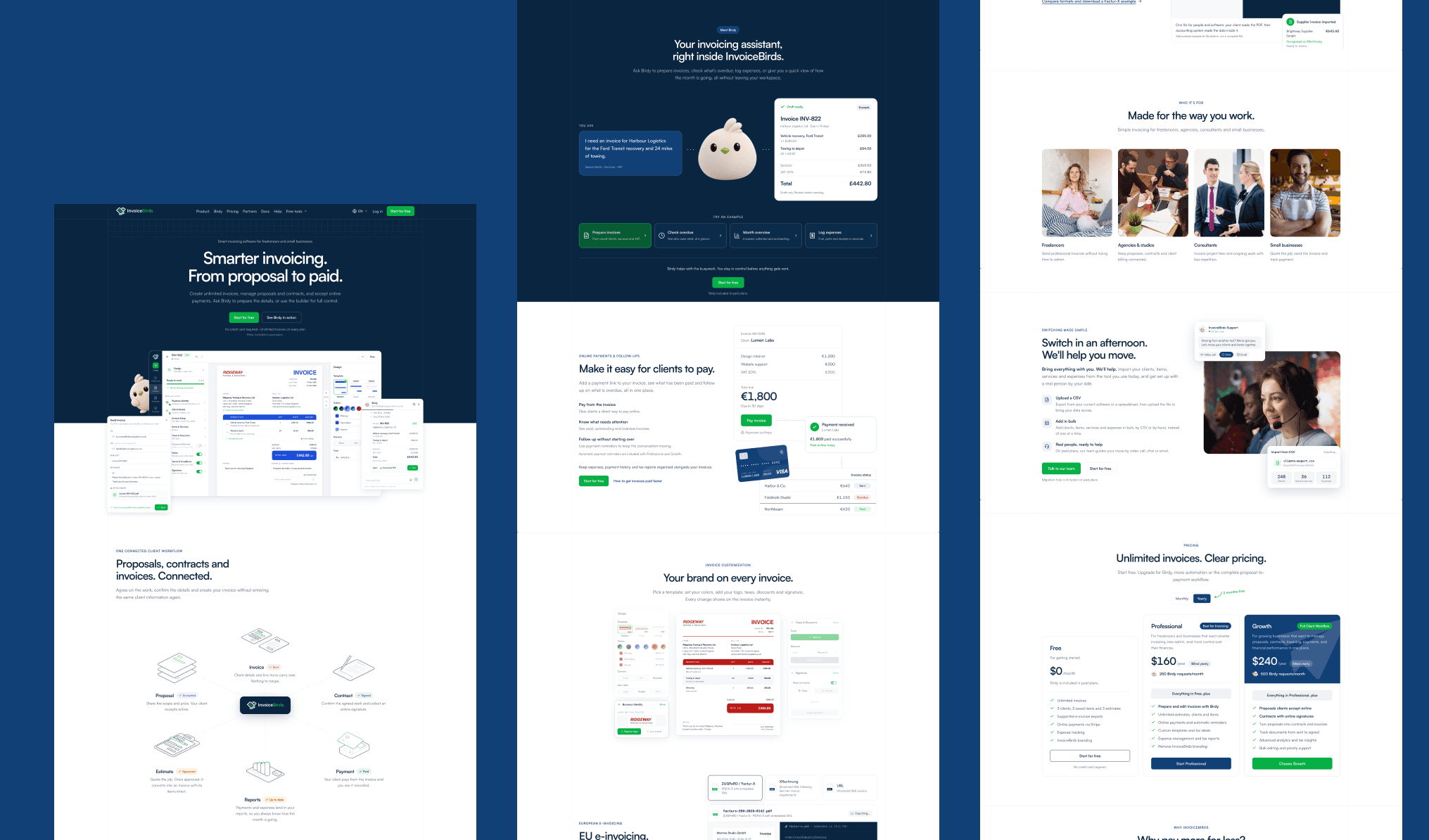
The full InvoiceBirds website, page by page.
The homepage opens on the live product demo, then moves through Birdy, payments, invoice customization and pricing.
The product
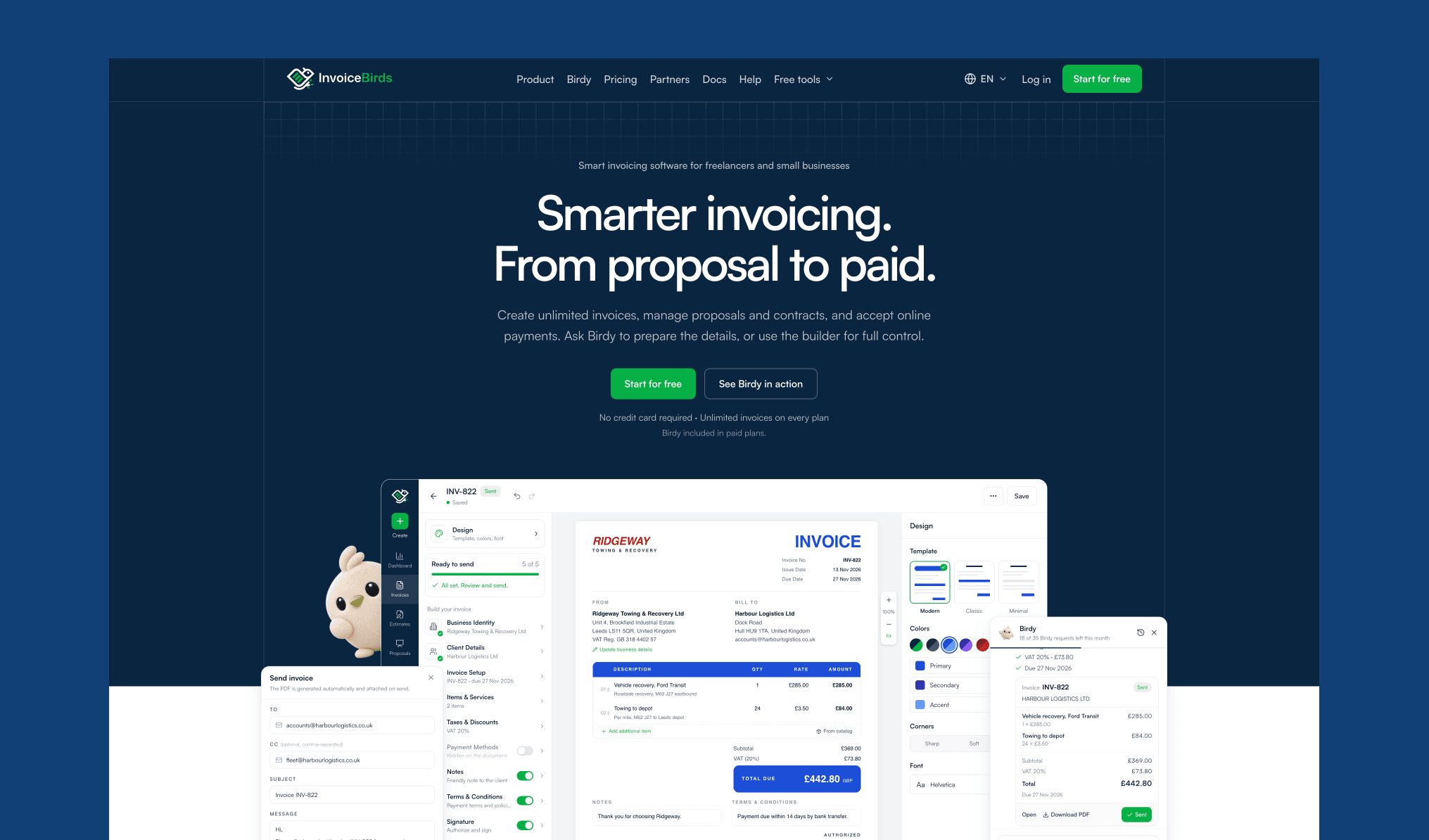
The live product demo from invoicebirds.com: Birdy drafts an invoice, the builder fills in, and the Send invoice dialog goes out. Both popups can be dragged.
The dashboard keeps the builder on the left, the invoice in the middle and the design panel on the right, so every change shows on the document straight away. Birdy, the assistant, drafts the invoice from a single sentence.

Smart invoicing software for freelancers and small businesses
Smarter invoicing.
From proposal to paid.
Create unlimited invoices, manage proposals and contracts, and accept online payments. Ask Birdy to prepare the details, or use the builder for full control.
No credit card required · Unlimited invoices on every plan
Birdy included in paid plans.
Illustration: a towing company asks Birdy to invoice Harbour Logistics for a van recovery and 24 miles of towing with 20% VAT, due in 14 days. The invoice builder fills in the client, line items, VAT and due date for a £442.80 total, Birdy shows a summary with send and download options, the user switches the invoice to blue, then reviews it and sends it to the client with a CC.



Your brand on every invoice
Colors, corners, logo, taxes and signature, applied to the invoice live.
The animation plays the same steps a user takes in the product, so the page shows the feature instead of describing it.
Invoice customization
Your brand on every invoice.
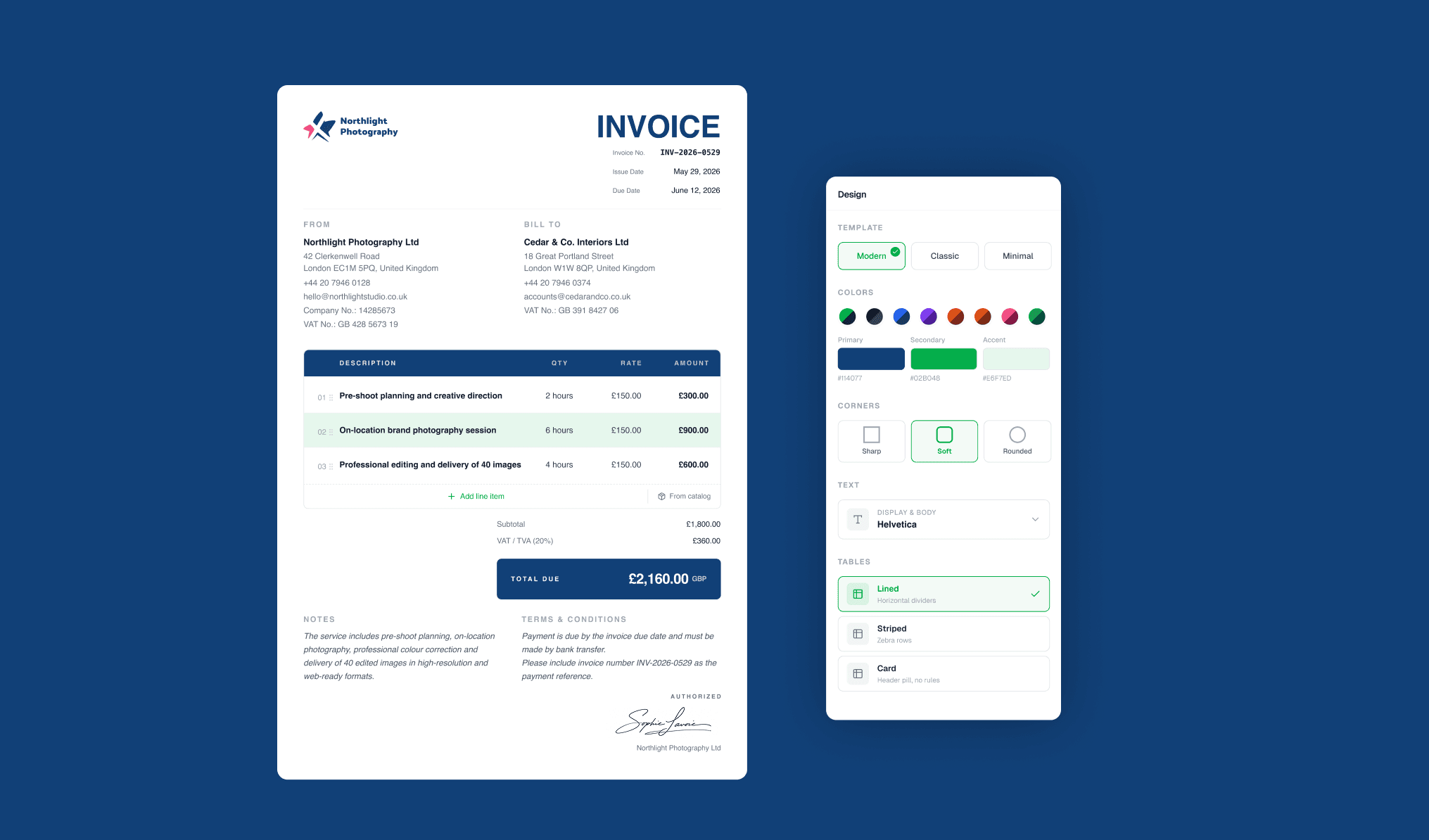
Pick a template, set your colors, add your logo, taxes, discounts and signature. Every change shows on the invoice instantly.
Animated example: an invoice from Ridgeway Towing & Recovery to Harbour Logistics is customized step by step. Brand colors are applied, corners are rounded and the item table becomes striped, a logo is added, VAT at 20% and a 10% discount are applied (total £501.12), and a drawn signature is added.
Documentation: invoice guide
Three steps from the Create an invoice guide, each with its animated mockup.
Each mockup replays the real interaction, so readers see the step before they try it.
Create an invoice · Step 3
Choose your client
Pick a saved client to fill everything in one tap, or enter a new client by hand and save them for next time.
- 1Open Client Details.
- 2Tap Select a saved client, search by name, and choose the client.
- 3For a new client, type their name, email and address, then select Save to my clients.
Saving a client doesn't change this invoice. The invoice saves on its own.
Create an invoice · Step 6
Apply taxes and discounts
Add the taxes your business charges and apply a discount when you need one. Totals update straight away.
- 1Open Taxes & Discounts and select Add tax.
- 2To discount the invoice, enter a value, choose Percent or a fixed amount, and select Apply discount.
- 3Check the totals on the invoice.
Set your usual tax in Invoice Defaults so it's added to every new invoice.
Create an invoice · Step 8
Add payment methods
Tell your client how to pay. Bank details and PayPal can be shown in a Payment details block on the invoice.
- 1Open Payment Methods and expand Bank Transfer.
- 2Enter your bank name, account number and SWIFT/BIC.
- 3Turn on Show on invoice. Select Save as business default to reuse these details.
Documentation: account guide
Three steps from the Manage your account guide: business identity, templates, and profile security.
The same settings screens as the product, animated at the pace of a real user.
Manage your account · Step 2
Add your business identity
Your name, logo and contact email appear on every invoice, estimate, proposal and contract.
- 1Open the Business tab.
- 2Under Company logo, drop or browse for a PNG, JPG or WebP file up to 5 MB.
- 3Enter your company name, website and business email, choose your industry, then select Save business defaults.
Leave Business email blank to use your login email on documents.
Manage your account · Step 7
Choose your template, colors and font
Pick the layout, brand colors and type every new invoice starts with.
- 1Open the Templates tab and choose Modern, Classic or Minimal.
- 2Select a quick preset or enter your own Primary, Secondary, Accent, Text and Background colors.
- 3Choose a font: Helvetica, Inter, Lora or Times, then save.
Manage your account · Step 12
Update your profile and password
Keep your personal details and sign-in secure.
- 1Open the Profile tab and update your full name and phone number.
- 2Under Change password, enter your current password and a new one of at least 8 characters, then select Update password.
- 3Turn on Two-factor authentication for an extra verification step when you sign in.
To close your account, use Delete account under Danger zone. This permanently removes your account and its data, so download anything you need first.
Process
The work moved from the structure and flows of the product to the interface, then to motion.
The animated demos were designed to show the product working step by step, and the logo and visual identity tie the website, the dashboard and the documentation together.
Outcome
A faster, clearer way to manage billing and everyday business finances.
One consistent product, from the logo to the last settings screen.
Have a similar project?